‏إظهار الرسائل ذات التسميات Security. إظهار كافة الرسائل

A dead-easy guide to keeping your PC up to date


Keeping your PC up to date with the latest security patches is a necessity and a burden at the same time. While you need to patch it up to protect it from attacks using known exploits to sneak past your PC’s defense, it at the same time means that you will spend time finding out about updates, downloading them and deploying them on your system.
So what’s the best way to do so? Best in this case means spending as little time as possible but still being safe when you connect to the Internet.
The first thing that you may want to do is prioritize as patching the operating system itself or Notepad should not have the same priorities. Here is the top list of priorities:
  • Operating system – This is the first priority. Make sure you always install the latest security patches when they become available.
  • Software that interacts with remote servers  – This includes web browsers, email clients, browser plugins, news readers, ftp clients and other programs that you use to connect to remote servers.
  • The rest – Software that you only use locally.

1. The operating system

The best way to handle operating system updates is to configure automatic updates in Windows. The operating system by default has automatic updates enabled. To verify that this is the case open the control panel with a click on start and the selection of the item in the start menu. Windows 8 users can tap on Windows and enter Control Panel to open it this way or enter Automatic Updates instead, switch to Settings on the right and select the Turn automatic updating on or off from there.
Here you need to click on System and Security and there on turn automatic updating on or off which leads to the following screen.
Windows XP users click on Automatic Updates right on the first page of the control panel.
windows automatic updates
The recommended setting is to install updates automatically. This should work for most users of the Windows operating system but not for those who want more control over the process. You can switch from installing important updates automatically to downloading but not installing, or only notifying you about them to give you the option to download them manually instead.
  • Suggestion 1: Set Windows to install updates automatically
  • Suggestion 2: Have Windows download patches and notify you about them at least
If you prefer to check for updates manually I highly suggest you subscribe to the Microsoft Security Response Center feed.

2. Software that connects to remote servers

There are thousands of programs out there that you can use to connect to remote servers or that do that on their own. It is impossible to provide you with instructions to configure all of them. You can however separate programs in high and low priority targets.
High priority targets are web browsers, web browser plugins and applications that are popular.
Most web browsers support automatic updates so that you do not need to do anything at all if you have configured the programs to be updated automatically when it comes to browsers. Here is a short checklist to verify the update state of your browser of choice:
  • Internet Explorer – Gets updated via Windows Update
  • Mozilla Firefox – Tap on the alt-key on the keyboard and select Tools > Options. Click on the advanced tab in the new window and there on the update tab. Check if Firefox is set to “automatically install updates”.
  • Google Chrome – The browser is configured to automatically update the system by default. There is no setting in the browser to disable the updating. You do have options to disable the updating though like disabling the Google Update plugin, service, or the task in the Windows Task Scheduler.
  • Opera – Click on the Opera button and select Settings > Preferences from the options. Click on the Advanced tab and there on Security on the left. Locate the Auto-update entry at the bottom and make sure it is set to automatically install updates.
automatic browser updates
If you do not want the installed browser to update manually I suggest you subscribe to the following feeds to receive notifications when browser updates are available:
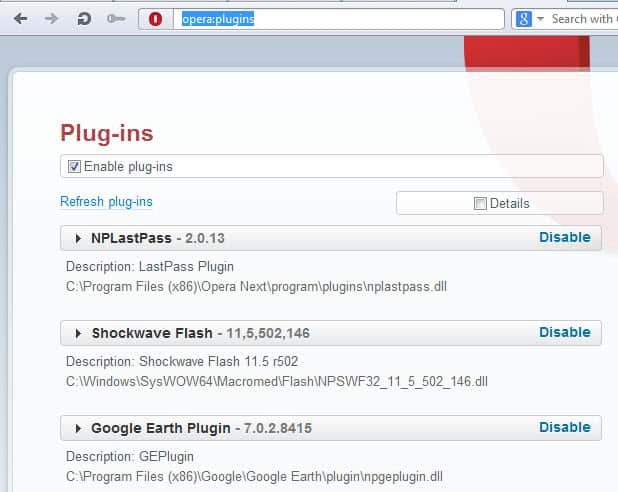
Browser plugins need to be updated separately from browsers. My first suggestion would be to take a look at the plugin listing to see if you find plugins listed here that you do not need. Firefox and Opera users can enter about:plugins, Chrome users chrome://plugins for a list of installed plugins.
plugins
I suggest you disable all plugins that you do not use. A good way to start would be to disable all of them to see if you notice any issues while browsing the web. Once you come upon sites that do not work anymore, start to enable the plugins needed to use those sites again.
Two plugins have been high profile targets in the past:
  • Oracle Java – Has an automatic update feature built-in
  • Adobe Flash Player – Also features automatic updates.
I suggest you subscribe to the following blogs to receive notifications about updates:
Use a  similar approach for other programs and plugins that you work with. Check out if they offer automatic updates and subscribe to the company feed to receive notifications about updates when they are released.

3. Other programs, general tips

The easiest way to take care of the majority of programs you have installed on your system is to install a program that scans your system regularly for outdated software. This most of the time includes plugin and browser checks, and sometimes even checks if all the latest Windows patches are installed.
Here is a small selection of programs that you can use to scan your system for outdated software and missing updates:
Continue Reading...

Why it is better to recheck files on Virustotal


Virustotal is one of the best security related services that you can access online. You can use it to check files that you upload to the service against the databases of more than 40 different antivirus engines. I use it to verify apps and programs that I review here on Ghacks to make sure that they are clean.
The service has a couple of limitations that need to be mentioned. For one, it is only possible to upload files that do not exceed 32 Megabyte in size. You sometimes may want to scan a larger file and can’t do so on Virustotal unless it is possible to extract the file – if it is an archive for instance – to check the files individually provided that they drop below the 32 Megabyte mark.
The second limitation is that you can only check one file at a time. While that is usually the case, you may want to consider adding multiple files to an archive to check them at once. This may lead to issues if malicious code is found in the archive as you do not really know the culprit right away and need to perform additional scans in this case to find out.
When you check files on Virustotal that have already been scanned previously, you get the option to look at the results of the previous scan. Virustotal computes the hash of the file, compares it with the hashes in the databases and when it finds an identical listing, it offers to display previous results to you.
virustotal file already analysed
A click on view last analysis displays the scan results of the previous result. Virustotal displays the data and time of the last scan as well as the detected hits.
You may want to consider clicking on the reanalyse button whenever you want to scan files on Virustotal that have been scanned previously. The reason is simple: the engines used by Virustotal are updated regularly so that a new scan of a file may have different results than the previous scan. While it is usually not necessary if the last scan was run 30 minutes ago, it is recommended to do so if it dates back days.
A new scan may also be helpful if you get results where some engines detected malware while the majority of engines did not. Updates to engines may resolve false positive issues for instance so that you may end up with a better result in the end.
Continue Reading...

Virustotal adds Quttera and Eset to its url scanners


You probably know that you can use Virustotal’s online service not only for scanning files for malicious contents but also website urls for that as well. The feature is not directly hidden on the Virustotal page but displayed beneath the large scan it button which makes it harder to see than the more obvious file scanning choice.
The url scanning works pretty much in the same way as scanning files on the site, only that you need to enter or paste an url into the form on it and not upload a file to it. Scans usually do not take long and the results are displayed for each url scanning service individually and in total.
What many users of Virustotal’s url scanning service do not know is that you can display additional information provided by some of the scanning services under the additional information tab. Here you see the site’s WOT or Webutation score, Alexa domain information, Dr. Web url classification and get links to full site check reports for a couple of services.
Here you also find website related information including the site’s IP address, response header and Alexa daily reach graph.
virustotal url scanner
Virustotal today announced that it has added two new url scanning services to its impressive list of supported services bringing the total to 35. The two new services, Quttera and ESET, are now integrated in the scanning engine and automatically queried when you check urls for malicious contents. Quttera is specialy in this regard as it is using a heuristic approach which may reveal malware that has not yet been identified as such by other scanning engines.
Quttera’s url scanner is available as a standalone command line scanner for Windows as well. While not that comfortable to use and prone to false positives, it may spot malware that might slip past other scanners.
Trend Micro’s and Antiy-AVL’s web checker have received an update as well which, according to the announcement, should improve the detection rate of those two services
Continue Reading...

Scan your local network for UPnP vulnerabilities

A report by security company Rapid7 on Tuesday brought attention to a set of vulnerabilities in UPnP that puts millions of users at risk. According to the research paper, more than 80 million unique IP addresses “were identified that responded to UPnP discovery requests from the Internet”, and at least half of those were vulnerable to at least one security vulnerability the researchers used to analyze the security of devices.
Attackers can take advantage of the vulnerabilities to execute code remotely on vulnerable systems to steal passwords and files, place malware on the systems or take them over completely.
This paper quantifies the exposure of UPnP-enabled systems to the internet at large, classifies these systems by vendor, identifies specific products, and describes a number of new vulnerabilities that were identified in common UPnP implementations. Over 1,500 vendors and 6,900 products were identified that are vulnerable to least one of the security flaws outlined in this paper. Over 23 million systems were vulnerable to a single remote code execution flaw that was discovered during the course of this research.
The research paper contains an “immediate actions” page that recommends a set of actions for Internet Service Providers, Businesses and home users.  Both Home users and businesses can run a scanner that the researchers have created to find out whether their local network is vulnerable or not.
Note: The scanner requires Java and will only run on Windows at the time of writing. You are also asked to fill out registration information – which are not checked – before you can run the scan.
The program itself will scan a local IP range to identify exposed UPnP endpoints on the network.
scan upnp vulnerabilities screenshot
A couple of options are available if a vulnerable endpoint is discovered. The first course of action would be to find out if an update is available. This is usually done by contacting the manufacturer of the device, e.g. router, or searching on the manufacturer’s website for updates. If there is no update, users may want to consider disabling UPnP on the device or replacing it if that is not possible at all.
Continue Reading...

Forensic tool to decrypt TrueCrypt, Bitlocker and PGP contains and disks released

One of the things that you can do to protect your data is to use encryption. You can either encrypt individual files, create a container to move files in to or encrypt a partition or disk. The main benefit of encryption is that a key, usually a password, is needed to access the data. A basic form of encryption is if you password protect a zip file, more advanced encryption can protect the whole systemincluding the operating system partition from unauthorized users.
While it is important to pick a secure password during setup to prevent third parties from successfully guessing or brute forcing the password, it is important to note that there may be other means to gain access to the data.
Elcomsoft has just released its Forensic Disk Decryptor tool. The company states that it can decrypt the information stored in PGP, Bitlocker and TrueCrypt disks and containers. It needs to be noted that local access to the system is required for one of the methods used by the program to work. Encryption keys can be acquired by three means:
  • By analyzing the hibernation file
  • By analyzing a memory dump file
  • By performing a FireWire attack
The encryption key can only be extracted from the hibernation file or memory dump if the container or disk has been mounted by the user. If you got the memory dump file or hibernation file, you can start the key search easily and at any time. Note that you need to select the right partition or encrypted container in the process.
If you do not have access to a hibernation file, you can create a memory dump easily with theWindows Memory Toolkit. Just download the free community edition and run the following commands:
  • Open an elevated command prompt. Do so with a tap on the Windows key, typing cmd, right-clicking the result and selecting to run as administrator.
  • Navigate to the directory you have extracted the memory dump tool to.
  • Run the command win64dd /m 0 /r /f x:\dump\mem.bin
  • If your OS is 32-bit, replace win64dd with win32dd. You may also need to change the path at the end. Keep in mind that the file will be as large as the memory installed in the computer.
Run the forensic tool afterwards and select the key extraction option. Point it to the created memory dump file and wait until it has been processed. You should see the keys being displays to you by the program afterwards.

Verdict

Elcomsoft’s Forensic Disk Decryptor works well if you can get your hands on a memory dump or hibernation file. All attack forms require local access to the system. It can be a useful tool if you forgot the master key and desperately need access to your data. While it is quite expensive, it costs €299, it may be your best hope of retrieving the key, provided that you are using hibernation or have a memory dump file that you have created while the container or disk were mounted on the system. Before you make a purchase, run the trial version to see if it can detect the keys.
You can disable the creation of an hibernation file to protect your system from this kind of attack. While you still need to make sure that no one can create a memory dump file or attack the system using a Firewire attack, it ensures that no one can extract the information when the PC is not booted.

Continue Reading...

Bitdefender releases Rootkit Remover tool for Windows

Rootkits are usually harder to identify and remove than regular malware due to the way these programs integrate themselves on a computer system. It is probably thanks to Sony and the company’s infamous music CD rootkit that a larger audience became aware of rootkits in general and how dangerous they are.
Two types of rootkit removers exist. First programs that run more or less on their own,Kaspersky’s TDSSKiller is an example of that, and second programs that scan the system but leave the interpretation of results to the user, with Gmer 2.0 being an example of that.
The first group of programs is usually only efficient against a set of rootkits, while the second group may identify them all but it also prone to report false positives.
Bitdefender’s Rootkit Remover falls into the first group of programs, as it identifies and deletes a set of known rootkits from Windows systems. The program is available for 32-bit and 64-bit editions of Windows and runs more or less on its own. At the time of writing, it is capable of detecting and removing the following rootkits:
Rootkit Remover deals easily with Mebroot, all TDL families (TDL/SST/Pihar), Mayachok, Mybios, Plite, XPaj, Whistler, Alipop, Cpd, Fengd, Fips, Guntior, MBR Locker, Mebratix, Niwa, Ponreb, Ramnit, Stoned, Yoddos, Yurn, Zegost and also cleans infections with Necurs (the last rootkit standing)
The company notes that new rootkit families are added to the program as they become known. Program use could not be easier. You download and start the program on a supported version of Windows to get started.
bitdefender bootkit removal tool screenshot
A click on start scan runs a scan on the system to detect any rootkit known by the software. The scan should not take longer than a couple of seconds before you are presented with notification that the removal process has been completed successfully.That’s an irritating message on systems where no rootkit was detected on.
If a rootkit is found, you will be asked to restart the system now or later (with now being the best option) to clean the system from the infection.
Verdict
Bitdefender’s Rootkit Removal Tool is a portable program for Windows to detect and remove several known rootkits and rootkit families from a system. It does not support automatic updates so that it is recommended to check the product homepage before you run scans to make sure you are running the latest version of the application.
The company should consider changing the status notification on clean systems to avoid consumer confusion.
Continue Reading...

Test if your router’s UPnP is exposed to the Internet

Universal Plug ‘n Play (UPnP) is a technology that enables devices to communicate with each other (meaning discovering and connecting) without authentication. So, instead of having to configure devices manually for that, devices like printers, game consoles, the fridge or fax machines use UPnP tp do so automatically so that they can provide their functionality on the network and use other functionality provided by the network, e.g. Internet access, automatically as well.
A issue came to light recently that highlighted that many routers expose UPnP to the Internet as well which in turn provides hackers and malicious users with options to expose this security issue to attack underlying systems through UPnP. This is a big problem as UPnP has been designed to provide its functionality only on local area networks and not public networks.
You can watch the Security Now 389 show which talks about the UPnP issue in detail below if you are interested to find out more about the issue.
In the article linked above I have mentioned a tool that you can use to scan your router to see if it is exposing UPnP to the Internet. Shields UP over at GRC has that functionality now as well. The core benefit here is that it does not require Java which the other tool did.
So, head over to the website right now and click on the proceed button and on the second page on the GRC’s Instant UPnP Exposure Test button to check our router to see if it exposes UPnP or not.
router internet exposure test screenshot
So what is happening when you hit that button?
This Internet probe sends up to ten (10) UPnP Simple Service Discovery Protocol (SSDP) M-SEARCH UDP packets, one every half-second, to our visitor’s current IPv4 address in an attempt to solicit a response from any publicly exposed and listening UPnP SSDP service
It should not take longer than a second for the results to be displayed. If you receive the message that “the equipment at the target IP address actively rejected [the] UPnP probes” then you know that UPnP is not exposed to the Internet by your router.
If you receive a message that the information are exposed, you need to react immediately. You can either check the router manufacturer’s homepage to see if there is a firmware update available that resolves the issue, disable UPnP or go out and shop for a new router that does not expose UPnP to the Internet.
Continue Reading...

Adobe Reader vulnerability: what you need to do to stay safe


We had a lively discussion on Google Plus yesterday about the latest Adobe Reader vulnerability (feel free to add me to your circles there to stay in the loop). The vulnerability affects all recent versions of Adobe Reader and Acrobat including the latest release versions. At the time of writing, there is no update available that you can install to protect yourself, your data and your computer from the vulnerability.
The vulnerabilities, which are actively exploited right now on the Internet, can cause Adobe Reader or Acrobat to crash allowing the attacker to take control of systems the software is running on. Adobe is aware of email based attacks that try to trick users into loading attached pdf documents with malware payloads.
Adobe is currently working on a fix to patch the vulnerability in Adobe Reader and Acrobat, but it is not clear yet when the company will release the fix to the public.
The company posted mitigation information on the security advisory page:
Users of Adobe Reader XI and Acrobat XI for Windows can protect themselves from this exploit by enabling Protected View. To enable this setting, choose the “Files from potentially unsafe locations” option under the Edit > Preferences > Security (Enhanced) menu.
Enterprise administrators can protect Windows users across their organization by enabling Protected View in the registry and propagating that setting via GPO  
or any other method.
 What’s interesting in this regard is that built-in protection blocks attacks from being executed automatically. The real question right now is why it is not enabled by default and what it does.
Protected Mode adds sandboxing to Adobe Reader and Acrobat that prevents malicious PDF documents to launch executable files or write to system directories or the Windows Registry.
It appears that Protected Mode is enabled in some versions of the program but not in others. The blog post that introduced the feature to the Adobe Reader community in 2010 highlights that Protected Mode will be enabled by default, and it seems that it was for some versions and that Adobe later decided to turn it off by default again.
It is not clear when that happened. A test installation of the latest Adobe Reader version revealed that it is turned off in that version by default. Some users reported that upgrades may also reset some features including Protected Mode.
So, it is highly suggested you check the setting in Adobe Reader if you are running Windows to make sure it is enabled.
It goes without saying that you should also use common sense when you receive pdf documents attached to emails. I’d also suggest to disable the Adobe Reader plugin in the web browser you are using for now. Some browsers, like Chrome and Firefox, offer native PDF readers that you can make use of instead.
Last but not least, switching to a third party program may also take your system out of the firing line.
Continue Reading...

Security News | PC and Internet Security

Computer security has always been important, but the rise of the Internet and the global Internet community have made it more pressing than ever. New threats have emerged with the Internet, including phishing attacks that spread via email, computer worms that replicate over the Internet, a new bread of trojans that take over a computer to include it in a bot network that is used for malicious activities, and spam and viruses are all threats that Internet users encounter these days.

We cover security updates when they are released for major software including Microsoft Windows, plugins like Java or Adobe Flash, and web browsers like Google Chrome or Firefox. In addition, we are also reporting about services, online and offline, that help you protect your systems against security threats, and post tutorials that explain how to recover a system when it has been successfully attacked
Continue Reading...