‏إظهار الرسائل ذات التسميات Blogger-Wordpress. إظهار كافة الرسائل

How To Edit And Customize Blogger Mobile Templates

 you enable mobile template for your blog, here is a good news, you can now customize your mobile site to your own personal taste using CSS definitions. You will able to decide which widget is to be displayed in mobile site and which one shouldn't. You can also configure a widget to appear on both 
desktop and mobile site.

How To Customize Mobile Template

The default widget that appears on mobile template are as follow: 
  • Header
  • Blog
  • Page List
  • Adsense (If applied)
  • Profile
  • Attribution
Three properties can be use to control how widget operates, and the properties include:mobile="no"mobile="yes", and mobile="only".
  • If you want to hide any default widget, simply use the mobile="no" property to hide the widget in mobile website.
Example: The default widget tag/code for attribution widget is:

<b:widget id='Attribution1' locked='true' title='' type='Attribution'/>

Now to hide the attribution widget, simply insert the mobile="no" property as shown below

<b:widget id='Attribution1' locked='true' mobile='no' title='' type='Attribution'/>

  • If you want to show any non-default widget, simply use the mobile="yes" property.
 Example: The default widget code for the archive widget is:

<b:widget id='BlogArchive1' title='Blog Archive' type='BlogArchive'>

Now use the mobile="yes" property as shown below

<b:widget id='BlogArchive1' title='Blog Archive' mobile='yes'type='BlogArchive'>

  • If you want to show a widget only in mobile site, simply use the mobile="only"property.
Example: Let's try to show the archive widget only in mobile site, using the mobilemobile="only" property as shown below.

<b:widget id='BlogArchive1' title='Blog Archive' mobile='only'type='BlogArchive'>


What Next?

You will need to activate custom template for your mobile template, as it may not show any changes if you are the using any of the default template.
Now go to Template, click on the gear icon below the mobile template and set it as shown in the screenshot below.


It is advisable that you Preview the custom template before you finally click on the Save button.


Customize Mobile Template Using CSS

You can set CSS properties for both mobile and desktop view, but make sure your template is having the following code.

<body expr:class='&quot;loading&quot; + data:blog.mobileClass'>

If you are so good at CSS, you can style your mobile site to your own perfect taste. You can edit some CSS class like:

.mobile .date-header {
  text-decoration:underline;
}


.mobile .main-header {
  margin: 0;
}


.mobile .content-outer{
text-decoration:none;
}

You can control how a widget behave in mobile site by using css class .mobile
Let us know if you have customize your mobile template and we will be happy to make a visit. You can check this blog on mobile and any recommendations or suggestions concerning the improvement of the mobile template is highly welcome.

Happy hacking! 
Continue Reading...

Show Pinterest Pin it Button On Images On Mouse Hover

If you are thinking of using Pinterest effectively for your business, then consider applying this awesome hack to your blog images. Pinning image will now get more easier for you and your readers after applying this hack. The pin it icon will appear on mouse hover and it works on most browsers like Firefox, Internet explorer, Google chrome. But it doesn't work in dynamic view, mobile template and when you enter your blog page using read more link.
On mouse hover the Pinterest pin it icon will appear on your images as shown in the screenshot below.
In our previous post we also shared a tutorial on how to disable right click on blog images which might also be of an interest to you.

How To Add Pinterest Pin it Button To Images

  • Go to Template > Edit HTML > Proceed
  • Use ctrl F to find </body> and paste the following code above/before </body>

<script>
//<![CDATA[
var bs_pinButtonURL = "https://blogger.googleusercontent.com/img/b/R29vZ2xl/AVvXsEizcPIDM3qOqjTvJHOQW8mrxgVcAxlCFVnWaDdVnwtQTvaq4b_p5VJLjb-G_jeuT6SYILo_hWnz8egD_Udg8y37uO5NpwJLhDBauy7HbcnOu00d8WHPHRHgR2mAnvvBN2QNJIqoiZEToYwA/s1600/pinterestx1_72.png";
var bs_pinButtonPos = "center";
//]]>
</script>
<script src='http://ajax.googleapis.com/ajax/libs/jquery/1.8.2/jquery.min.js' type='text/javascript'></script>
<script src='http://greenlava-code.googlecode.com/svn/trunk/publicscripts/bs_pinOnHoverv1_min.js' type='text/javascript'></script>
<!-- please do not alter or remove the following code -->
<div id='bs_pinOnHover'><a href="http://www.bloggersentral.com/2012/11/pinterest-pin-it-button-on-image-hover.html">Pin It button on image hover</a></div>

  • Save your template.

How to block the button on a particular image?

If you wish to block the image from appearing on a particular image, simply assign nopin class to the image tag in your post editor after switching to HTML mode. See the example below.

<img class="nopin" border="0" src="https://blogger.googleusercontent.com/img/b/R29vZ2xl/AVvXsEhW-aTj0FGmxXAqg_3pGuzMF0y6cwDWAXV_078ehLrmyytgOrZD6GsOIiVP2RbuVA-zhKtwpyo-apRiU6I_ZNIPzxA7TCfhHOsI2VwxQtZDLOZw6HO_DQbf3NPofVSAP9AavGKT9k8RyVu6/s1600/image.jpg" />

You might also like:
Hope you found this useful? Take few seconds to share it.
Happy Pinning! 
Continue Reading...

Add Adsense, Banner, Search Box Or New Widget Section In Header

I saw a question in a forum concerning how to add adsense banner inside the header area, in which no one reply to the query, but i later gave her a solution to it, and i think i should share the trick behind it with my loyal readers too.
This tutorial will be base on how to add new widget section in your header. Actually you can add any widget of your choice to the new widget section.


How To Add New Widget Section Beside Header

  • Go to your blogger dashboard (back up your template)
  • Click on Template > Edit HTML > Proceed (Don't Mark/Tick Expand Widget Template)
  • Use ctrl F to find the following line

<b:section class='header' id='header' maxwidgets='1' showaddelement='no'>
<b:widget id='Header1' locked='true' title='Your Blog Title(Header)' type='Header'/>
</b:section>
  • Now add the following new widget section code below the code above.
<b:section id='header-right' showaddelement='yes'/>
<div style='clear: both;'/>

The final code should look like the following:

<b:section class='header' id='header' maxwidgets='1' showaddelement='no'>
<b:widget id='Header1' locked='true' title='Your Blog Title(Header)' type='Header'/>
</b:section>
<b:section id='header-right' showaddelement='yes'/>
<div style='clear: both;'/>


Styling With CSS

You will need to style the new widget section with CSS so as to position it beside the header
  • Search for ]]></b:skin> and paste the following code above/before ]]></b:skin>

#header, body#layout #header {width:50%;display:inline-block;float:left;}
#header-right, body#layout #header-right {width:35%;display:inline-block;float:right;padding:15px;}
#header-right .widget {margin:0;}
  • Now Save your template.

Installing New Widget

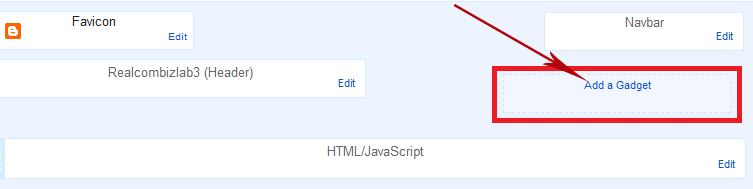
To add widget beside the header section, simply go to Layout and click on Add a Gadget as shown in the screenshot below.


You can add any widget of your choice beside header be it an ads banner, search boxsocial widgets etc.

Hope you like this hack pals? We are also thinking of adding/replacing the widget inside our header section, which widget do you think it will be suitable for that position. We will love to hear from you.

Happy hacking! 
Continue Reading...

Disable Hightlight Function: Protect Your Blog Content From Copy and Paste

To write a very constructive blog content is a very hard work, which some bloggers don't understand what it takes, all they are looking for is where to copy content for their blog, which is really a very bad act, especially when your copied content is ranking higher than your original content. I can remember when i first started blogging, it took me 10-15mins before i can actually figure out where to start my write-up, but seems to be getting easier as 
time goes on.
Now the major trick you can use to protect your content from copy and paste bloggers is to disable highlight function. I also shared a tutorial on how to disable right click context menu on images, which you can also use it to protect your blog images.

How To Disable Highlight Function

  • Go to your dashboard
  • Click Template > Edit HTML > Proceed
  • Use ctrl F to find </head> and paste the following code above </head>

<script type='text/javascript'>
 if (typeof document.onselectstart!=&quot;undefined&quot;) {
 document.onselectstart=new Function (&quot;return false&quot;);
}
 else{
 document.onmousedown=new Function (&quot;return false&quot;);
 document.onmouseup=new Function (&quot;return true&quot;);
}
</script> 

  • Now save your template.

Alternative

You can also add it, using this second option.
  • Go to Layout > Add a Gadget > HTML/JavaScript
  • Paste the following code in the content box leaving the title box empty.

<script language='JavaScript1.2'>
function disableselect(e){
return false
}
function reEnable(){
return true
}
document.onselectstart=new Function (&quot;return false&quot;)
if (window.sidebar){
document.onmousedown=disableselect
document.onclick=reEnable
}
</script> 

  • Click on the Save button and you are done.
With this trick, your blog content is now safe from copy and paste bloggers.
Take few seconds to share it, if it help's a bit. 
Continue Reading...

Show Or Hide Blogger Widget On Homepage, Post Pages, Static Pages, Or On Selected Pages

It is always important that you control how widget function in your blog, because their are some widget that are suitable mostly for homepage only while some makes sense post pages, archive pages, and so on. Most frequently asked question by my blog readers is that how can they hide a particular widget (especially recent post widget) from displaying in homepage in other to reduce the load time of their homepage, while some are interested in showing a widget on only homepage. So if you are also interested in controlling your widget performance, then this tutorial will trash out your worries.We will be using different conditional tag to selectively display widget on any preferred pages.

How To Show Widget Only On Homepage

Use the following conditional tag to show widget on homepage only.

<b:if cond='data:blog.url == data:blog.homepageUrl'>

WIDGET CODE HERE

</b:if>

How To Hide Widget On Homepage

<b:if cond='data:blog.pageType == "item"'>

WIDGET CODE HERE

</b:if>

How To Show Widget Only On Static Pages

<b:if cond='data:blog.pageType == "static_page"'>

WIDGET CODE HERE

</b:if>

How To Hide Widget On Static Pages

<b:if cond='data:blog.pageType != "static_page"'>

WIDGET CODE HERE

</b:if>

How To Show Widget Only On Archive Pages

<b:if cond='data:blog.pageType == &quot;archive&quot;'>

WIDGET CODE HERE

</b:if> 

How To Hide Widget On Archive Pages

<b:if cond='data:blog.pageType != &quot;archive&quot;'>

WIDGET CODE HERE

</b:if> 

How To Show Widget On A Selected Post

<b:if cond='data:blog.url == "URL Of Selected Post"'>

WIDGET CODE HERE

</b:if>

How To Hide Widget On A Selected Post

<b:if cond='data:blog.url != "URL Of Selected Post"'>

WIDGET CODE HERE

</b:if>

How To Wrap Widget With The Conditional Tag

The conditional tag can be applied to any widget using the same procedure.
  • Go to your blogger dashboard
  • Click on Template > Edit HTML > Proceed (Mark/Tick Expand Widget Template)
Every widget has a code structure, but you can easily locate a widget using the widget title. Each widget code structure will look like the following:

<b:widget id='Widget-ID' locked='' title='Widget-Title' type=''>
<b:includable id='main'>


LARGE CODE


</b:includable>
</b:widget> 

Wrapping the widget with any conditional tag, the final result will look like the following:

<b:widget id='Widget-ID' locked='' title='Widget-Title' type=''>
<b:includable id='main'>
<b:if cond='data:blog.url == data:blog.homepageUrl'>

LARGE CODE

</b:if>
</b:includable>
</b:widget>

The conditional tag used above is just an example, you can choose any condition tag of your choice, and the same procedure applies to all.
Any queries or contribution/appreciation is highly welcome, and don't forget to share it with friends/followers. 
Continue Reading...

How To Add Yahoo Smileys To Blogger Threaded Comments

Writing a very constructive content is a thing and people commenting on the post is another thing. Most readers actually don't like commenting on blogs, especially if they found your blog so boring, but this hack aims to increase your chances of getting more comments on your blog, as readers will love to see the functionality of the smileys by commenting your blog which will definitely brings you more exposure.


This hack works with blogger threaded comment and on all blogger template. Now follow the simple steps below.


How To Add Yahoo Smileys To Blogger

  • Go to your blogger dashboard
  • Click on Template > Edit HTML > Proceed (Mark/Tick Expand Widget Template)
  • Use crtl F to find ]]></b:skin> and paste the following code above it.

img.realcombiz {
    height: auto !important;
    vertical-align: middle !important;
    width: auto !important;
    border:0px !important;
}

  • Search for </body> and paste the following code above </body>

<script src='http://rbcode.googlecode.com/files/yahoosmileys.js' type='text/javascript'/>

  • Now search for this line <div class='post-footer-line post-footer-line-3'> 
  • Find the next </b:includable> and paste the following code above </b:includable>

<b:if cond='data:blog.pageType == &quot;item&quot;'>
<div class='realcombiz' id='ysmile' style='
background: -moz-linear-gradient(top, #e4f5fc 0%, #bfe8f9 50%, #9fd8ef 51%, #2ab0ed 100%);background: -webkit-gradient(linear, left top, left bottom, color-stop(0%,#e4f5fc), color-stop(50%,#bfe8f9), color-stop(51%,#9fd8ef), color-stop(100%,#2ab0ed));background: -webkit-linear-gradient(top, #e4f5fc 0%,#bfe8f9 50%,#9fd8ef 51%,#2ab0ed 100%);background: -o-linear-gradient(top, #e4f5fc 0%,#bfe8f9 50%,#9fd8ef 51%,#2ab0ed 100%);background: -ms-linear-gradient(top, #e4f5fc 0%,#bfe8f9 50%,#9fd8ef 51%,#2ab0ed 100%);background: linear-gradient(top, #e4f5fc 0%,#bfe8f9 50%,#9fd8ef 51%,#2ab0ed 100%);border-radius: 3px;width:100%; padding:10px; height:65px;'>
<img alt='' class='bhacksmly' src='http://l.yimg.com/us.yimg.com/i/mesg/emoticons7/1.gif'/> :)
<img alt='' class='bhacksmly' src='http://l.yimg.com/us.yimg.com/i/mesg/emoticons7/2.gif'/> :(
<img alt='' class='bhacksmly' src='http://l.yimg.com/us.yimg.com/i/mesg/emoticons7/3.gif'/> ;)
<img alt='' class='bhacksmly' src='http://l.yimg.com/us.yimg.com/i/mesg/emoticons7/4.gif'/> :D
<img alt='' class='bhacksmly' src='http://l.yimg.com/us.yimg.com/i/mesg/emoticons7/7.gif'/> :-/
<img alt='' class='bhacksmly' src='http://l.yimg.com/us.yimg.com/i/mesg/emoticons7/8.gif'/> :x
<img alt='' class='bhacksmly' src='http://l.yimg.com/us.yimg.com/i/mesg/emoticons7/10.gif'/> :P
<img alt='' class='bhacksmly' src='http://l.yimg.com/us.yimg.com/i/mesg/emoticons7/11.gif'/> :-*
<img alt='' class='bhacksmly' src='http://l.yimg.com/us.yimg.com/i/mesg/emoticons7/12.gif'/> =((
<img alt='' class='bhacksmly' src='http://l.yimg.com/us.yimg.com/i/mesg/emoticons7/13.gif'/> :-O
<img alt='' class='bhacksmly' src='http://l.yimg.com/us.yimg.com/i/mesg/emoticons7/14.gif'/> X(
<img alt='' class='bhacksmly' src='http://l.yimg.com/us.yimg.com/i/mesg/emoticons7/15.gif'/> :7
<img alt='' class='bhacksmly' src='http://l.yimg.com/us.yimg.com/i/mesg/emoticons7/16.gif'/> B-)
<img alt='' class='bhacksmly' src='http://l.yimg.com/us.yimg.com/i/mesg/emoticons7/18.gif'/> #:-S
<img alt='' class='bhacksmly' src='http://l.yimg.com/us.yimg.com/i/mesg/emoticons7/20.gif'/> :((
<img alt='' class='bhacksmly' src='http://l.yimg.com/us.yimg.com/i/mesg/emoticons7/21.gif'/> :))
<img alt='' class='bhacksmly' src='http://l.yimg.com/us.yimg.com/i/mesg/emoticons7/24.gif'/> =))
<img alt='' class='bhacksmly' src='http://l.yimg.com/us.yimg.com/i/mesg/emoticons7/26.gif'/> :-B
<img alt='' class='bhacksmly' src='http://l.yimg.com/us.yimg.com/i/mesg/emoticons7/101.gif'/> :-c
<img alt='' class='bhacksmly' src='http://l.yimg.com/us.yimg.com/i/mesg/emoticons7/100.gif'/> :)]
<img alt='' class='bhacksmly' src='http://l.yimg.com/us.yimg.com/i/mesg/emoticons7/102.gif'/> ~X(
<img alt='' class='bhacksmly' src='http://l.yimg.com/us.yimg.com/i/mesg/emoticons7/103.gif'/> :-h
<img alt='' class='bhacksmly' src='http://l.yimg.com/us.yimg.com/i/mesg/emoticons7/28.gif'/> I-)
<img alt='' class='bhacksmly' src='http://l.yimg.com/us.yimg.com/i/mesg/emoticons7/41.gif'/> =D7
<img alt='' class='bhacksmly' src='http://l.yimg.com/us.yimg.com/i/mesg/emoticons7/43.gif'/> @-)
<img alt='' class='bhacksmly' src='http://l.yimg.com/us.yimg.com/i/mesg/emoticons7/45.gif'/> :-w
<img alt='' class='bhacksmly' src='http://l.yimg.com/us.yimg.com/i/mesg/emoticons7/47.gif'/> 7:P
<img alt='' class='bhacksmly' src='http://l.yimg.com/us.yimg.com/i/mesg/emoticons7/48.gif'/> 2):)
<img alt='' class='bhacksmly' src='http://l.yimg.com/us.yimg.com/i/mesg/emoticons7/110.gif'/> :!!
<img alt='' class='bhacksmly' src='http://l.yimg.com/us.yimg.com/i/mesg/emoticons7/111.gif'/> \m/
<img alt='' class='bhacksmly' src='http://l.yimg.com/us.yimg.com/i/mesg/emoticons7/112.gif'/> :-q
<img alt='' class='bhacksmly' src='http://l.yimg.com/us.yimg.com/i/mesg/emoticons7/113.gif'/> :-bd
<img alt='' class='bhacksmly' src='http://l.yimg.com/us.yimg.com/i/mesg/emoticons7/114.gif'/> ^#(^
</div><a href="http://realcombiz.com"></a></b:if>

  • Save your template
That's all
We hope this hack brings more positive effect to your blog. peace out pals :) 

Continue Reading...